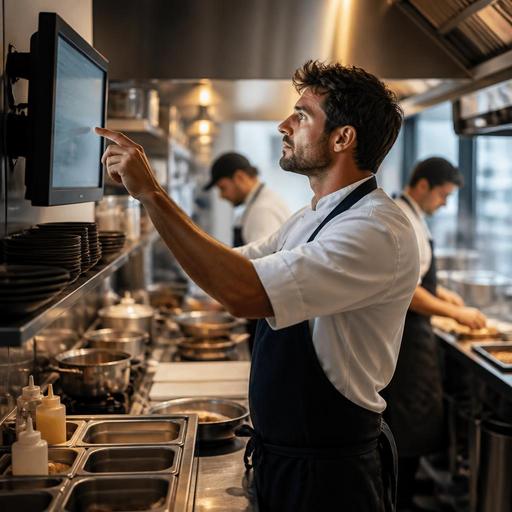
How to Set Up a Kitchen Display System for Faster Restaurant Service
A kitchen display system setup can improve speed, visibility, and coordination across the line, but only if it reflects how your restaurant actually works. Many operators install screens and expect instant results, then discover that tickets still pile up, cooks still call across the pass, and timing problems simply move from paper to digital. The practical goal is not to replace printers with tablets. It is to build a workflow where orders arrive in the right station, with the right modifiers, at the right time, and in a format the team can act on quickly.
For restaurant owners and kitchen managers, that means making a few operational decisions before any device goes on the wall. Which orders should appear where? When should a dish fire immediately, and when should it wait? Who bumps completed items? How will dine-in, takeout, and delivery orders differ? A strong setup answers these questions in advance and turns the KDS into a working part of service instead of another screen staff must manage.
Start with your real kitchen flow, not the software menu
The best KDS configurations begin with a simple map of your production flow. List every order source you use, such as waitstaff POS entry, QR ordering, online ordering, phone orders entered by staff, and marketplace integrations. Then list every production point: grill, fry, salad, pizza, dessert, drinks, expo, and packing. The purpose is to match incoming tickets to the team that must act on them.
For example, a casual burger restaurant may need one screen for grill, one for fry, and one at expo. A cafe with a compact line may need a single production screen and a second pickup screen near the handoff area. A pizza operation may need separate views for make line, oven, and cut-and-box. The right setup depends less on restaurant size and more on whether each station has a distinct workload and handoff.
Before configuring anything, walk through a busy hour and note where delays happen. You may find that the issue is not order entry but expo visibility. Or that delivery orders interrupt dine-in pacing because they appear in the same queue with no clear priority. A KDS should reduce these frictions by making work visible and sequenced.
- Identify order channels: dine-in, takeout, delivery, kiosk, QR menu, call-in.
- Identify stations: prep, hot line, cold line, beverage, dessert, expo, packing.
- Mark dependencies: which items must finish together, and which can start later.
- Define ownership: who accepts, prepares, checks, and completes each order.
Design station routing and ticket views carefully
Once the kitchen flow is clear, configure routing rules so each station sees only what it needs. This sounds obvious, but poor ticket design is one of the main reasons teams resist KDS adoption. If the fry station sees dessert modifiers, or the salad station sees every item in a family order, attention drops and bumping mistakes rise.
Each station screen should show only the relevant items, modifiers, and timing cues. Keep the display readable from the normal working position. If your cooks wear gloves and move fast, small text and crowded layouts will create friction. Group modifiers under the item they belong to and make allergy, no-onion, extra-spicy, or no-dairy requests easy to spot without scanning the whole ticket repeatedly.
Expo screens need a different logic from production screens. Production stations should focus on what to make. Expo should focus on what is waiting, what is complete, and what is still missing from a table or order bag. In a mixed-service restaurant, it also helps to label orders clearly by type, such as dine-in, pickup, or delivery, so the final handoff process is obvious.
A useful practical test is to pick three common orders and one difficult order, then check whether every station can understand its task in a few seconds. If not, simplify the view before launch.
Examples of routing decisions
A brunch restaurant might route eggs and hot mains to the hot line, salads and yogurt bowls to cold prep, and coffee to beverage. Expo sees the full table ticket and waits until all items are marked ready. A ghost kitchen, by contrast, may route by brand as well as station, because packaging and prep rules differ between virtual concepts even when equipment is shared.
Set timing rules for firing, pacing, and order priority
A screen alone does not solve pacing. You need rules for when orders appear and how they are prioritized. This is especially important if your restaurant handles dine-in and off-premise orders at the same time. Without timing controls, the kitchen can receive too much work at once, causing late tickets and rushed plating.
Start by separating immediate-fire items from paced items. A soup or bottled drink may fire immediately, while a dessert may wait until the table is ready. Delivery orders may need lead times based on driver pickup windows. Reservations and pre-orders may need future firing rules. These decisions should reflect service style, not guesswork.
Use practical categories for priority instead of constantly changing settings during service. For instance:
- Standard: normal queue order for regular dine-in and takeout.
- Timed: fire at a specific moment for coursing or scheduled pickup.
- Rush: limited use for genuine exceptions, not daily overflow.
- Hold: items that should not start until a trigger is met.
Be careful with the rush function. If everything becomes urgent, nothing is urgent. Managers should define when staff can mark an order as rush and who has authority to do it. Otherwise, the KDS becomes a source of noise rather than control.
Train staff on actions, not just buttons
Many KDS rollouts fail because training focuses on tapping the screen rather than changing behavior. Staff need to know what each status means in real service. What counts as started? When should an item be bumped: when cooking begins, when plating is complete, or only when expo confirms it? If different stations use different definitions, ticket times lose meaning and the queue becomes unreliable.
Create a short operating standard for each role. Line cooks should know how to read tickets, acknowledge items, handle modifiers, and escalate unclear orders. Expo should know how to track missing items, combine completed dishes, and communicate remakes. Front-of-house staff should understand how order changes appear on the KDS and what happens when guests add items after the original order is sent.
Use live practice during a quiet shift. Send test orders with common modifiers, split courses, allergy notes, and mixed dine-in plus delivery demand. Then review what confused the team. Often the best improvements are small, such as renaming a menu item for clarity, changing modifier order, or adjusting which station owns a side dish.
- Define one bump rule per station.
- Standardize modifier language.
- Document how voids, remakes, and late adds appear.
- Train one shift leader to troubleshoot during launch week.
Measure what the setup is actually improving
After launch, review the KDS as an operational tool, not a finished project. The first two weeks usually reveal routing errors, unclear menu builds, and timing assumptions that looked fine on paper but fail during peak periods. This is normal. What matters is having a routine for adjustment.
Look for simple signals. Are certain tickets waiting too long at one station? Are modifiers creating repeated verbal clarification? Are delivery bags sitting complete while dine-in tables wait on one missing side? Are staff bypassing the system with handwritten notes because a menu path is unclear? These are setup issues, not staff attitude issues.
A useful review rhythm is to check one service period at a time: lunch, dinner, weekend brunch, or late-night delivery. Each may need slightly different routing or prep sequencing. Seasonal menu changes also matter. If you add limited-time items, test how they appear on each screen before the first busy shift.
This is where connected restaurant systems become valuable. If your QR menu, online ordering, and order management tools feed the kitchen through one structured workflow, the KDS can stay consistent across channels. Restomas supports this kind of connected setup by helping restaurants manage digital ordering flows, menu changes, and service operations in one place, which makes kitchen screen setup easier to maintain over time.
A practical kitchen display system is not defined by the number of screens on the wall. It is defined by whether the right task reaches the right person at the right moment, with enough clarity to act without hesitation. When routing, timing, and staff habits align, the KDS becomes a quiet operational advantage: fewer verbal interruptions, cleaner handoffs, better pacing, and a kitchen that can handle growth with less confusion.
If you are refining your restaurant's digital workflow, Restomas can help connect menus, ordering, and kitchen operations in a more manageable way.