A Practical 7-Step Transition Guide to KDS Setup in Restaurants
KDS setup — that is, the transition to a Kitchen Display System — does not merely mean reading a paper ticket off a screen in a restaurant. When designed correctly, it simplifies in-kitchen communication, makes order prioritization visible, and reduces the disconnects between service and the kitchen. However, a poorly planned setup can make operations more complex even if it increases the number of screens. For this reason, the move to a KDS should be treated not as a device investment but as an end-to-end workflow design.
Especially in businesses that manage dine-in, takeaway, and pickup orders simultaneously, it is critical which station the orders go to, in what sequence, and with which details. For example, if a burger, salad, and drink are part of the same order, routing them to the relevant prep stations with the correct breakdown — rather than piling them up on a single screen — preserves the kitchen's rhythm. Systems like Restomas, which handle order management, the QR menu, and restaurant digitalization under one roof, gain meaning precisely at this point: they make operations manageable without fragmenting the data flow.
1. Before the KDS setup, map your existing kitchen flow
The first step is not choosing technology but clarifying today's flow. Where does the order currently come from, who sees it, who prepares it, who gives the "completed" signal? If the answers to these questions are not written down, a KDS screen will simply digitalize the old confusion.
Draw a simple flow map:
- Order sources: dining room, QR menu, phone, takeaway platforms, register
- Prep stations: hot, cold, beverages, dessert, packaging
- Delivery types: table service, pickup, courier delivery
- Critical bottlenecks: pending approvals, lost tickets, repeatedly asked product details
For example, in a breakfast-focused cafe the pace of the egg station and the coffee bar is not the same. Instead of showing all orders on a single screen, designing a station-based view is more efficient. This is the most common mistake in setups done without a flow map: there is a screen, but the right information does not reach the right person at the right moment.
2. Create a station-based screen plan; do not get stuck on single-screen logic
The most important decision in KDS design is where the screens will be placed in the kitchen and with what logic. Not every business needs to find a solution with a single "kitchen screen." In fact, this approach often creates problems.
The following questions help you determine the screen plan:
- Which product groups go to different prep areas?
- Which stations need to access the same order at the same time?
- Which team should see only its own task list?
- Who will check the order as a whole at the packaging or pass area?
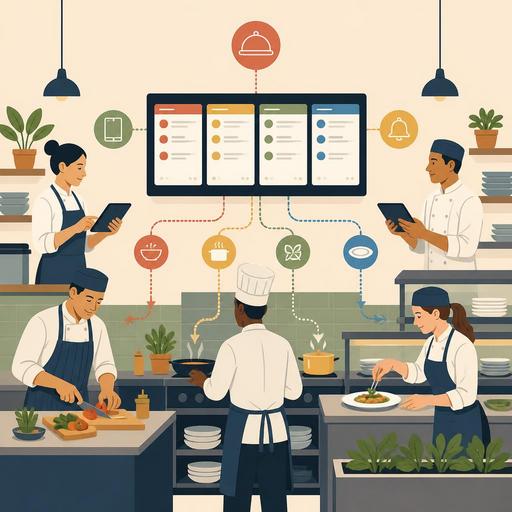
Consider a concrete example: in a restaurant, the pizza oven, the salad section, and the beverage bar work in separate areas. Instead of everyone seeing the entire order, pizza items should drop to the oven screen, salads to the cold station, and drinks to the bar; the final check should then come together on the pass screen. This way employees do not get lost among irrelevant items.
Tip: Mounting a screen on the wall is not a solution on its own. Viewing angle, exposure to steam and heat, gloved use, touch sensitivity, and readability throughout the shift must also be taken into account.
3. Define the order rules and priority logic from the start
What makes a KDS powerful is not the screen but the routing rules in the background. If it is not clear which order will be prepared first, which notes will stand out, and which delay will generate an alert, the team simply continues reading a digital ticket.
Core rules to add to the setup
- Order type distinction: Table service, takeaway, and pickup orders should be marked differently.
- Product routing: Each product should automatically drop to the correct station.
- Special note visibility: Notes such as allergens, "no onion," "rare," and "sauce on the side" should be prominent.
- Time priority: Orders with longer waiting times should be visually distinguished.
- Completion flow: When a station finishes its work, the other teams and the service side should be able to see it.
For example, during a takeaway rush, keeping courier-bound orders at the same priority as hot service orders in the dining room can be a mistake. Because a hot dish that reaches the table late directly affects the customer experience. Similarly, if the drink and main item in a kids' menu are prepared at different times, order completeness should be checked on the packaging screen before marking "completed."
At this point, POS integration and order-management infrastructure become critical. Even if the order's source changes, a common language must form in the kitchen. Otherwise, the dining-room order comes in one format, the QR order in another, and the takeaway order with missing details.
4. Run a pilot setup and test it with peak-hour scenarios
The most expensive mistake in a KDS setup is running the system at full capacity for the first time on a Saturday evening. The right approach is to run a pilot first at a limited station or during specific service hours.
During the pilot test, specifically try the following scenarios:
- Multiple table orders dropping in at the same time
- Adding a note to a product after the fact, or making a change
- Correctly removing a cancelled item from the screen
- Takeaway and dining-room orders overlapping
- How the pass area responds when a station falls behind
For example, at a tradesman's eatery with quickly consumed items at lunch service, the pilot process can be short. But at a restaurant with a high volume of a la carte, modified, and multi-component products, test scenarios should be prepared in more detail. The aim here is to answer not so much "is the screen working?" as "is the team working more clearly with this screen?"
5. Deliver staff training as role training, not device training
In KDS transitions, resistance usually arises not from the technology but from role ambiguity. If employees do not know in which situation to start, hold, complete, or give feedback on an order, the system soon yields to old habits.
For this reason, separate the training by position:
- Prep staff: What will they see on their own screen, and which signals will they follow?
- Pass supervisor: How will they check order completeness?
- Service team: How will they tell which order is ready?
- Manager: How will they monitor delays, bottlenecks, and recurring errors?
Short pre-shift training sessions, sample orders on the screen, and written mini-procedures are quite useful. Training at the level of "press this button" is not enough. Staff should also see how their own action affects the other stations.
6. Track success with observable operational indicators, not gut feeling
You do not need exaggerated reports to measure improvement after a KDS. Even a few clear indicators observable on the floor are enough to understand the right setup.
Practical indicators to monitor in the first weeks
- A reduction in repeatedly asked order notes in the kitchen
- The disappearance of the need for lost or reprinted tickets
- Visibility of incomplete orders waiting at the pass area
- The service team asking "which table is ready?" less often
- Earlier recognition of uneven load between stations during busy hours
What matters here is not just speed but accuracy. Orders that go out very fast but incomplete do not count as operational success. The real contribution of a KDS is that it makes kitchen decisions visible. As a manager, you too more easily notice which station struggles at which hours. This insight feeds many decisions, from shift planning to menu simplification.
7. Do not leave the KDS on its own; manage it together with the menu, order, and service flow
The most efficient KDS setup is one that is not disconnected from the other digital processes. If the product names on the menu are ambiguous, the modification options are disorganized, or the order channels do not talk to one another, the kitchen screen merely shows the confusion at the final stage.
For this reason, consider these three areas together:
- Menu standardization: Product names, variations, and the structure of extra notes must be clear.
- Order collection: The QR menu, register, and other channels must produce data with the same logic.
- Service feedback: Information about a ready order must flow regularly to the dining-room or delivery team.
For example, if a customer marks the "extra cheese" option in a standard way on an order placed through the QR menu, this data appears legible and consistent in the kitchen. If the same product is entered differently at the register, differently by phone, and differently on the QR menu, it becomes harder for the KDS to create order. In restaurant digitalization, the real gain emerges when the tools speak the same operational language.
In conclusion, a KDS setup is less about buying a screen and more about making the kitchen flow visible again. A well-planned transition clarifies order routing, simplifies communication between teams, and makes it possible to work more in control during busy hours. If you handle this transition together with your menu structure, order sources, and service flow, the KDS quickly turns into an operational tool that is genuinely used in the kitchen.
Restomas can help you design your order flow, QR menu structure, and restaurant digitalization needs more holistically during the preparation for a KDS.