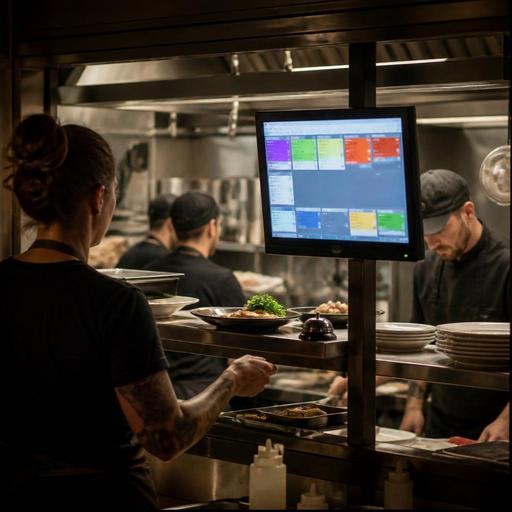
Kitchen Display System Setup for Restaurants: A Practical Operations Guide
A kitchen display system setup for restaurants can do much more than replace paper tickets. When it is configured well, it becomes the control center for service speed, order accuracy, and kitchen communication. When it is configured poorly, it simply moves confusion from the printer to a screen. For restaurant owners and operations managers, the goal is not just to install hardware, but to design a workflow that matches how the kitchen actually works during prep, service, delivery, and handoff.
This guide takes a practical view of kitchen display system setup, with clear actions you can apply whether you run a cafe, a full-service restaurant, a fast-casual concept, or a delivery-focused kitchen.
Start with service flow, not the screen
Before choosing where to mount screens or how many stations to create, map your current order journey. A kitchen display system should reflect the real path of an order from guest selection to final handoff. That includes dine-in, takeaway, delivery apps, direct online orders, and phone orders entered by staff.
For example, a burger restaurant may need separate routing for grill, fry, and packing. A cafe may need one screen for espresso drinks and another for food assembly. A casual dining restaurant may need a hot line screen, a cold station screen, and an expo view for final checks. If every order appears on every screen, staff will spend more time filtering than cooking.
Start by asking these questions:
- Which order channels feed the kitchen today?
- Which stations actually prepare each menu item?
- Where do modifiers create the most mistakes?
- Who is responsible for final quality check and order completion?
- At what point should an order be marked ready?
Write this down before setup begins. A simple workflow document prevents expensive rework later.
Build station routing around menu logic
The most important setup decision is item routing. Your KDS should send the right items to the right station automatically based on menu structure. This means your digital menu, POS categories, and kitchen stations need to speak the same operational language.
A common mistake is using guest-facing menu categories as kitchen categories. Guests may see sections like favorites, chef specials, or weekend offers, but the kitchen needs functional logic such as grill, salad, dessert, or bar. If the menu is not mapped correctly, new items and seasonal dishes will create confusion fast.
Take a practical example. A chicken wrap combo may include the wrap, fries, and a bottled drink. In the KDS, the wrap should route to the hot line, fries to the fry station, and the bottled drink may appear only at packing or pickup. The guest sees one order, but the kitchen needs task-based visibility.
During setup, review these areas carefully:
- Item names: Keep kitchen-facing names short and unmistakable.
- Modifiers: Make allergy notes, no-onion requests, sauce choices, and doneness levels highly visible.
- Combos and bundles: Split components to the correct stations.
- Prep timing: Identify items that should fire immediately versus closer to pickup.
- Out-of-stock behavior: Ensure unavailable items are removed or blocked across ordering channels.
This is where restaurant digitization matters. If your ordering system, QR menu, and POS are connected, menu changes can flow into operations more cleanly. Platforms like Restomas can help restaurants keep menus and ordering touchpoints aligned so the kitchen is not working from outdated information.
Set screen roles for production, expo, and handoff
Not every screen should do the same job. The best kitchen display system setups define clear roles for each view. In many restaurants, three roles matter most: production, expo, and handoff.
Production screens
These belong at the stations where food is prepared. Cooks should see only the items relevant to their work, with modifiers displayed clearly and in a consistent format. Avoid clutter. If the sauté station sees dessert and beverage tickets, attention drops and errors rise.
Expo screens
Expo or pass screens help coordinate timing across stations. This view should make it easy to see which parts of the order are in progress, which are complete, and what is waiting. In full-service restaurants, expo is often where plating checks happen. In fast-casual or delivery operations, expo may be the point where items are packed and verified.
Handoff or pickup screens
These are useful for takeaway and delivery-heavy businesses. Staff at this stage need a clear list of orders ready to bag, label, or hand to a courier or guest. This reduces the chance that a finished order sits unnoticed while the kitchen assumes it has already left.
A practical rule is simple: each screen should answer one operational question. What do I make? What is waiting? What is ready to leave? If a screen tries to answer everything, it usually helps no one.
Train the team on status changes and exception handling
Many KDS problems are not technical problems. They are training problems. Even a good setup fails if staff use status buttons inconsistently or ignore exceptions during busy periods.
Your team should know exactly when to bump an item, when to mark an order in progress, when to hold it, and who handles special cases. This matters especially for split tickets, allergy requests, delayed couriers, and guest changes after the order is sent.
Create short operating rules such as:
- Bump items only when they are physically complete, not when cooking starts.
- Mark the full order ready only after packaging or final plate check.
- Escalate allergy notes verbally in addition to screen visibility.
- Use a hold status for timed courses or delayed pickup orders.
- Assign one person per shift to monitor exceptions and courier delays.
Run a live test before full launch. Use a quiet service window to send sample orders with modifiers, combos, voids, and channel variations. Then test again during a busy period. The second test usually reveals what the first one misses: screen placement issues, unreadable modifier formatting, and unclear ownership between kitchen and front-of-house.
Measure bottlenecks and improve the setup weekly
A kitchen display system should not be treated as a one-time installation. It is an operating system that needs adjustment as menus, staff, and order mix change. The first version of your setup is rarely the final version.
Review service patterns every week, especially in the first month. Look for recurring questions. Which station falls behind first? Which modifiers are often missed? Which order channels create the most confusion? Are pickup orders being completed before couriers arrive, causing food to wait too long? Are dine-in tickets being delayed because delivery orders are mixed into the same production queue?
Use what you learn to make specific changes:
- Move high-frequency items to faster-access station views.
- Separate delivery and dine-in production when timing needs differ.
- Rename unclear modifiers in the menu backend.
- Adjust prep sequencing for items that lose quality if finished too early.
- Refine screen placement to reduce walking and repeated verbal checks.
For example, a cafe that adds more lunch traffic may discover that drinks and toasties compete at the same handoff point. A small workflow change, such as a dedicated packing screen for online orders, can improve clarity without changing the whole system.
The best results usually come when KDS setup is connected to broader digital operations. If reservations, online ordering, QR menus, and POS data are aligned, managers can make better decisions about staffing, menu design, and service pacing. The screen in the kitchen then becomes part of a larger operating model rather than an isolated device.
A well-planned kitchen display system setup gives restaurants cleaner communication, fewer avoidable mistakes, and a more stable service rhythm under pressure. If you are improving your restaurant’s digital workflow, Restomas can support connected menu and ordering operations that make kitchen execution easier to manage.